Make login and registration screens recognisably yours with the branded login feature.
You have four ways of accessing the registration page for CELUM Cloud Account:
Start the free "Content Collaboration Basic" plan on the CELUM website. Click the "Get started" button, enter your information in the form that opens, and you will receive a link to the registration page by e-mail.
This option will already provide your own organisation account and starter package.
Get invited directly to an organisation in CELUM Cloud Account or to a Workroom in CELUM Work.
Use the "Connect to Cloud account" function in CELUM Content. This will open the CELUM Cloud Account login page.
Additionally, you automatically request access to your company's organisation account when you use this function, which enables you to use the subscribed CELUM services. An organisation administrator can then approve your request.
Access the registration page directly by clicking on the "Login" button on the CELUM website.
Choose how you want to register and follow the instructions for your
preferred method:
Standard registration. Register with your e-mail and password. If your organisation has Single Sign-On (SSO) enabled, registration will have fewer steps.
SSO is only available if this option is enabled for your organisation and for new users only, i.e. the ones without a user account.
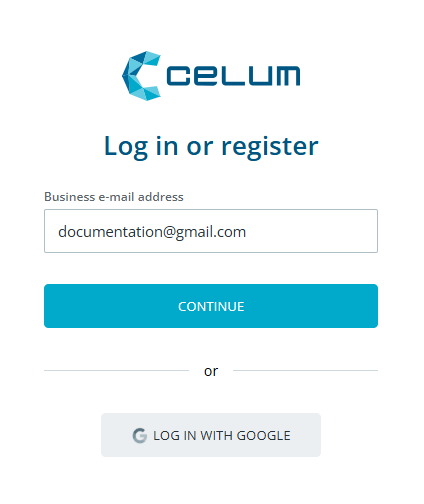
On the registration page, enter your work e-mail address in the input field and click "Continue".
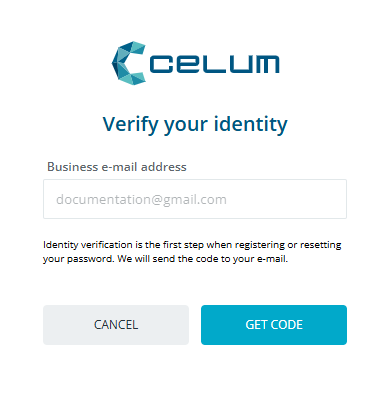
In the "Verify your identity" step, click the "Get
code" button. An e-mail with a verification code will be sent
to your e-mail address. If you sent multiple verification codes to
your e-mail address, be aware that only the newest code which you
received is valid.
Verification code validity
The verification code is only valid for 5 minutes. If you cannot verify the code within 5 minutes of receiving it, you need to request a new code.
Enter the code in the "Verification code" field and
click "Verify".
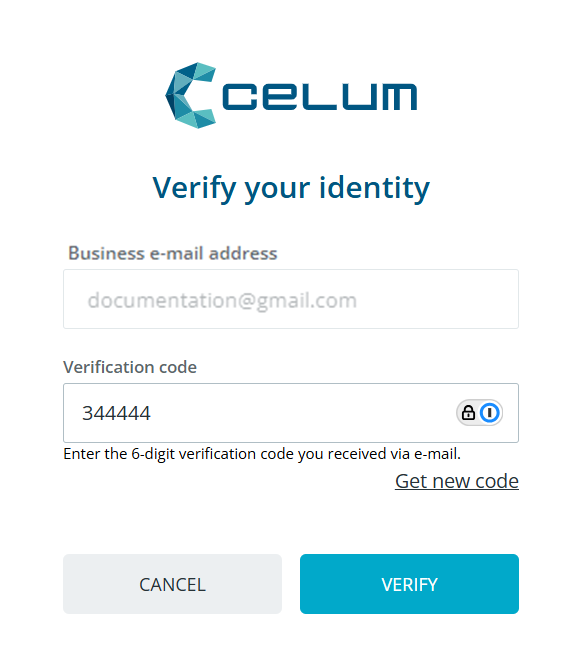
If the verification should fail, you will see a notification in the registration form. In this case, simply click "Get new code" to try the verification with a different code.
Once your e-mail address was verified successfully, click "Continue".
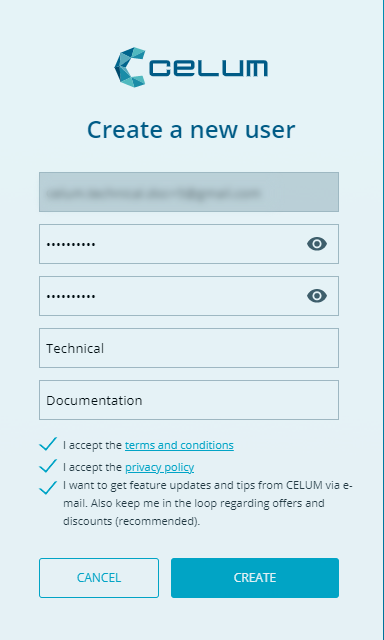
In the next step, you will see the "Register" page.
Fill in the required information and click the "Register"
button.
You are automatically logged in as a new user and will be forwarded directly to the CELUM Cloud Account home page where you can create an organisation.
If your organisation has SSO enabled, your registration flow will be simplified.
On the registration page, enter your work e-mail and click "Continue"
to see the "Register" step:
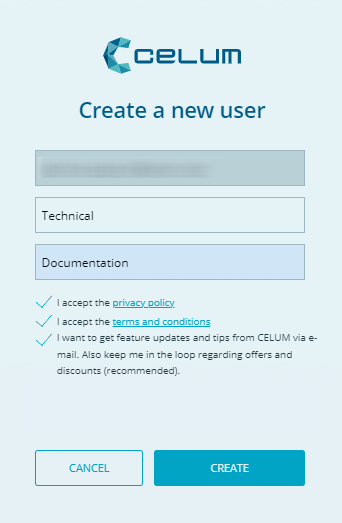
Accept the terms and conditions and privacy policy and click "Register".
You are automatically logged in as a new user and forwarded directly to the CELUM Cloud Account home page.
On the login page, click "Log in with Google".
You will be redirected to the Google account page. Click on the account you wish to use for registration.
A "Register" page opens. Accept the terms and conditions
and privacy policy, and click "Register".
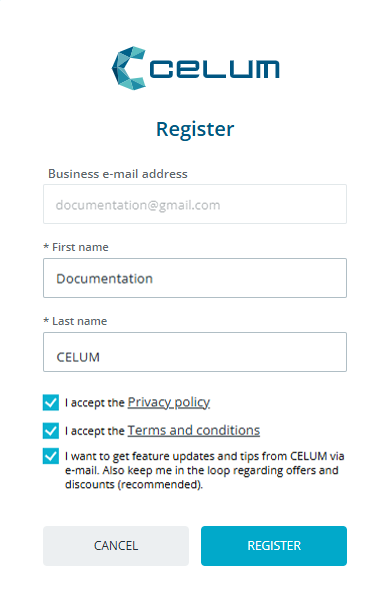
You are automatically logged in as a new user and forwarded to the CELUM Cloud Account home page.