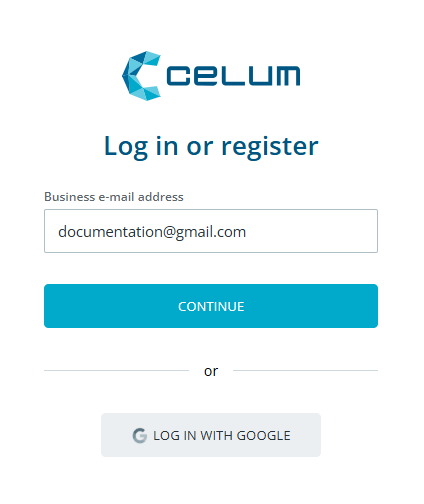
Open the main CELUM Cloud Account login page account.celum.com in a browser.
Enter your user account's
e-mail address and click "Continue".
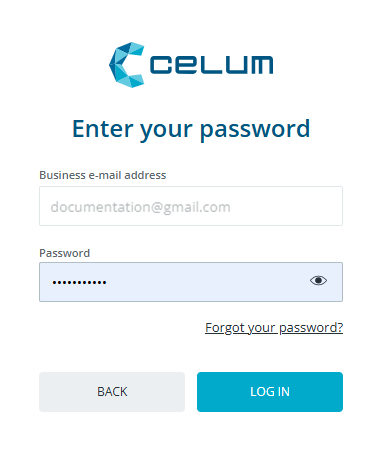
On the "Enter your password" page, click the "Forgot
your password?" link underneath the input fields.
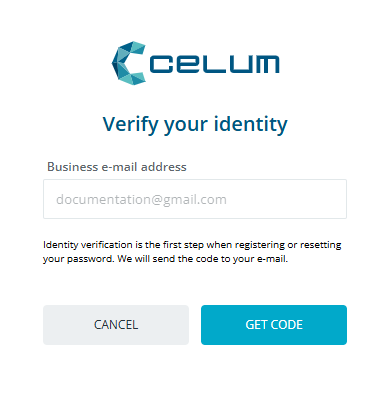
A "Verify your identity" dialog opens. In the dialog,
click the "Get code" button. An e-mail with a verification
code will be sent to your e-mail address. If you sent multiple verification
codes to your e-mail address, be aware that only the newest code which
you received is valid.
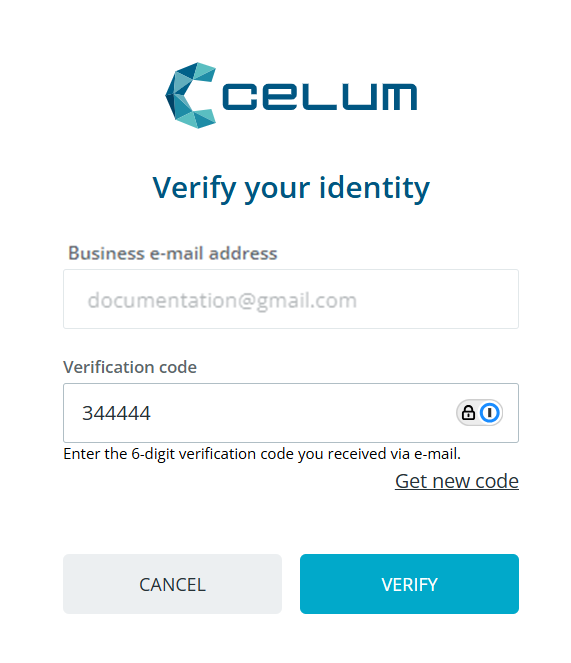
Enter the code in the "Verification code" field. And
click "Verify".
Once your e-mail address was verified successfully, click "Continue".
A "Reset your password" dialog opens where you enter
your new password.
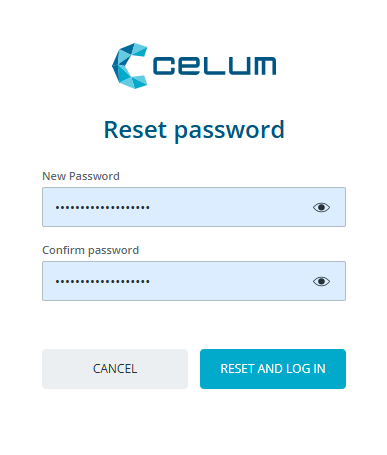
To finish click "Reset and log in". Your password has been reset and you are logged into your account.